Set up Schwa with Ollama
Ollama is a free application that connects Schwa to current large language models. With an Ollama account, Schwa can use Ollama's cloud models on any computer, free of charge within Ollama's usage limits. On computers with enough memory, Ollama can instead run smaller models entirely locally, so session data never leaves your machine. Schwa includes a built-in Ollama (local) provider for both cases, and no API key is required.
Setup has three steps: install Ollama, create an account and choose a model, and add the model to Phon. Each step is described below. No programming knowledge is required: one short copy-and-paste terminal command fetches the recommended model, and every other step is done by pointing and clicking.
Install Ollama
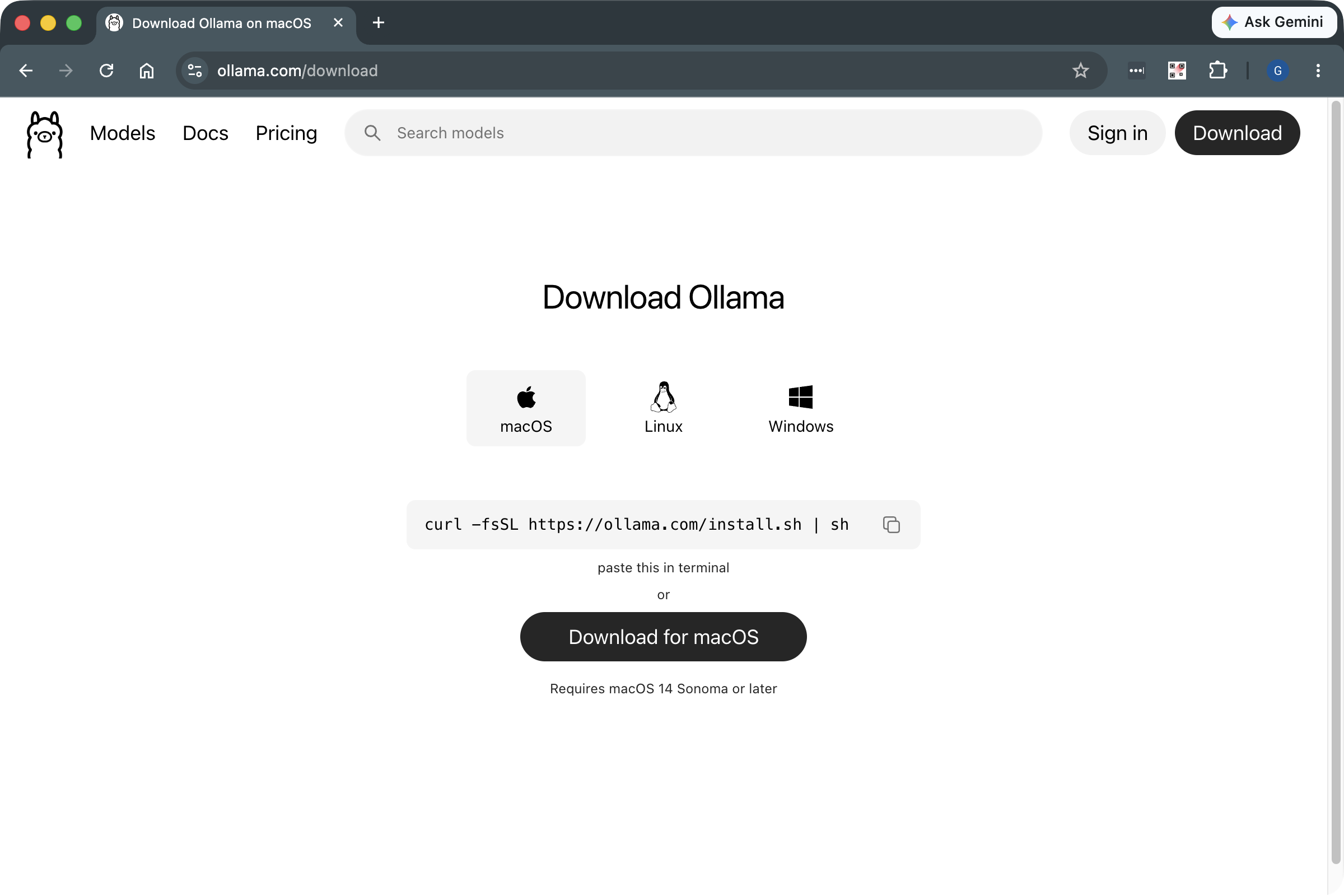
In a web browser, go to ollama.com/download.
Click your operating system (macOS, Linux, or Windows), then click the download button.
Open the downloaded file and follow the installer's instructions. On Linux, copy the shown command into a terminal instead.
After installation, open the Ollama application from the
Applications folder (macOS) or Start menu (Windows). A chat window opens, and a
llama icon appears in the macOS menu bar or the Windows system tray to show that
Ollama is running. Ollama must be running whenever Schwa uses it; it listens on
your computer at address localhost:11434, which is where Schwa
connects.
Create an Ollama account and choose a model
An Ollama account gives Schwa access to Ollama's cloud models: current, large
models that run on Ollama's servers instead of your computer. They are free to use
within Ollama's usage limits (paid plans raise the limits), give excellent Schwa
results, and need no special hardware, which makes them the right choice for most
users. Phon recommends gemma4:cloud, a current model that is
strong at the reasoning and tool use Schwa relies on and is available on Ollama's
free plan. Some larger cloud models require a paid plan and report this model
requires a subscription
when tried.
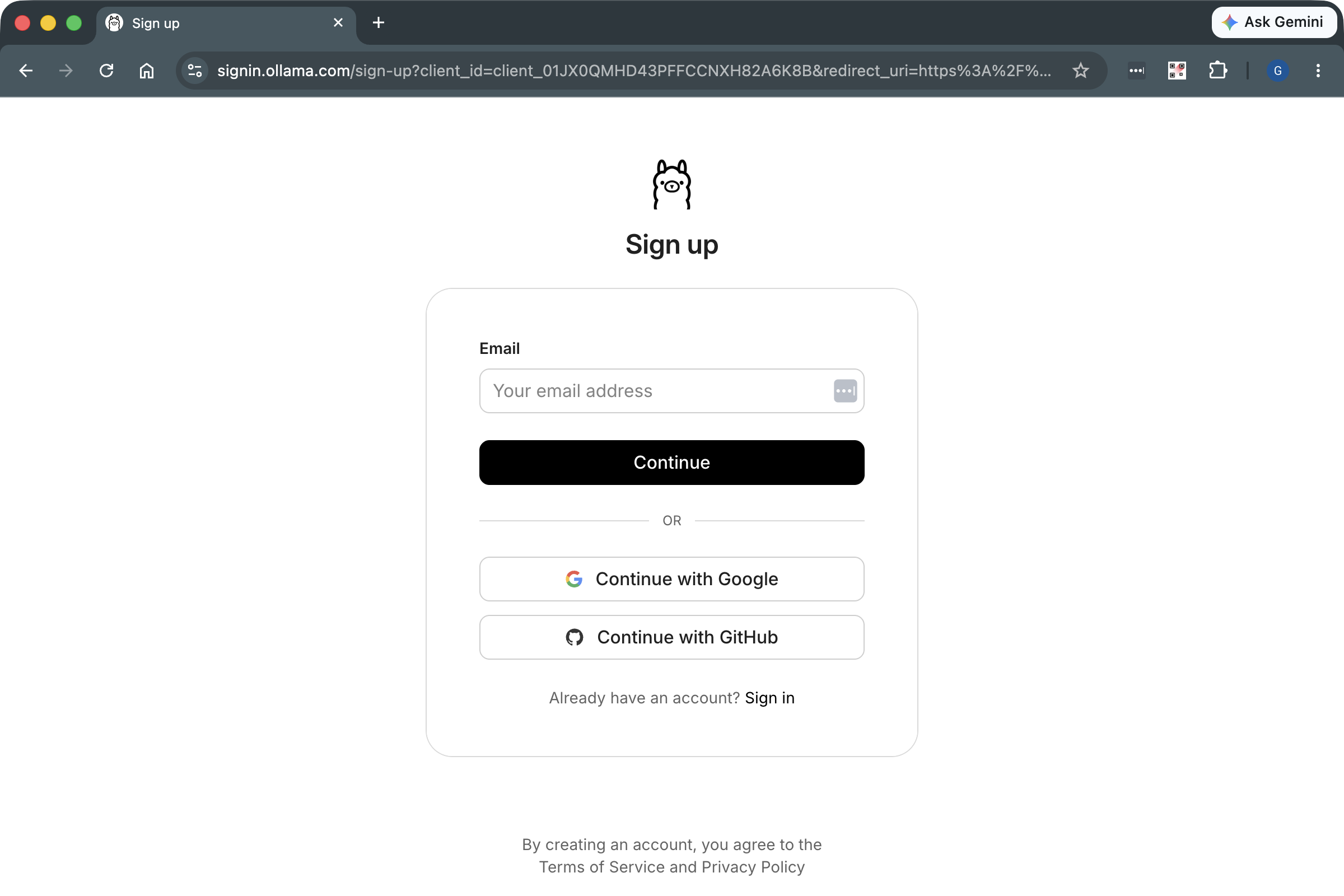
In a web browser, go to ollama.com/signup.
Enter an email address and click Continue, or choose Continue with Google or Continue with GitHub, and follow the prompts.
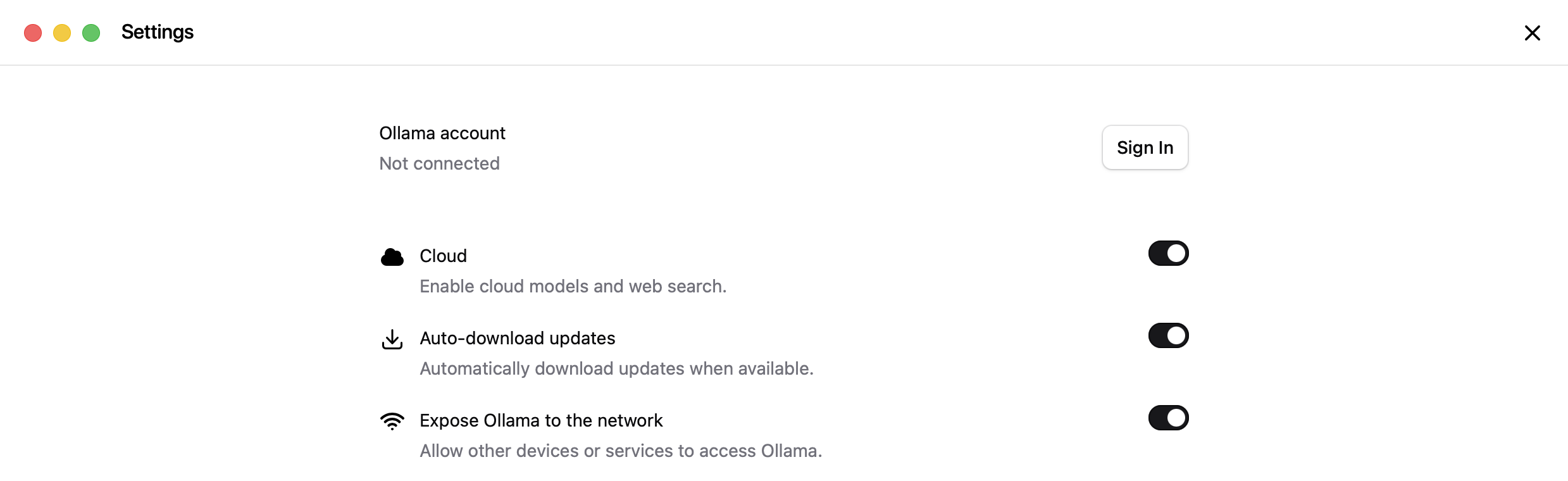
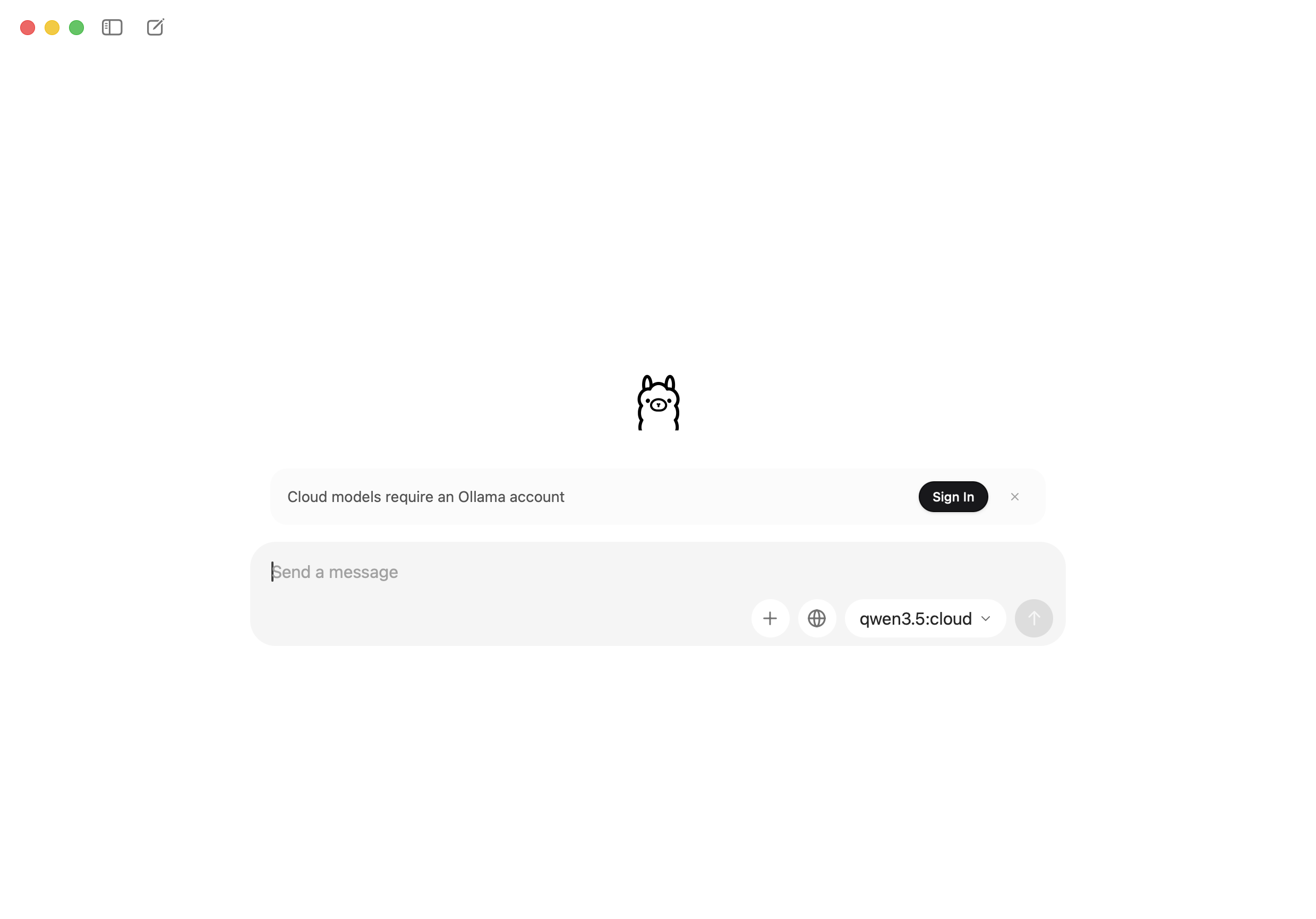
Back in the Ollama application, click Sign In (shown in the chat window and in Ollama's Settings) and sign in with the new account. From a terminal,
ollama signindoes the same.Open a terminal: on macOS press Cmd+Space, type
Terminal, and press Return; on Windows open Command Prompt from the Start menu.Type the following command and press Return:
ollama pull
                            gemma4:cloud
After the command finishes,
gemma4:cloudappears in the model list in the lower-right corner of the Ollama window's message box. Choose it there and send any message, for examplehello, to confirm it works. It is now ready for Phon.
The terminal command is needed because the Ollama window's model list shows only a
curated selection. To skip the terminal entirely, choose
minimax-m3:cloud from that list instead; it is also on the
free plan.
Add the model to Phon
In Phon, open the Preferences window and click the Schwa tab.
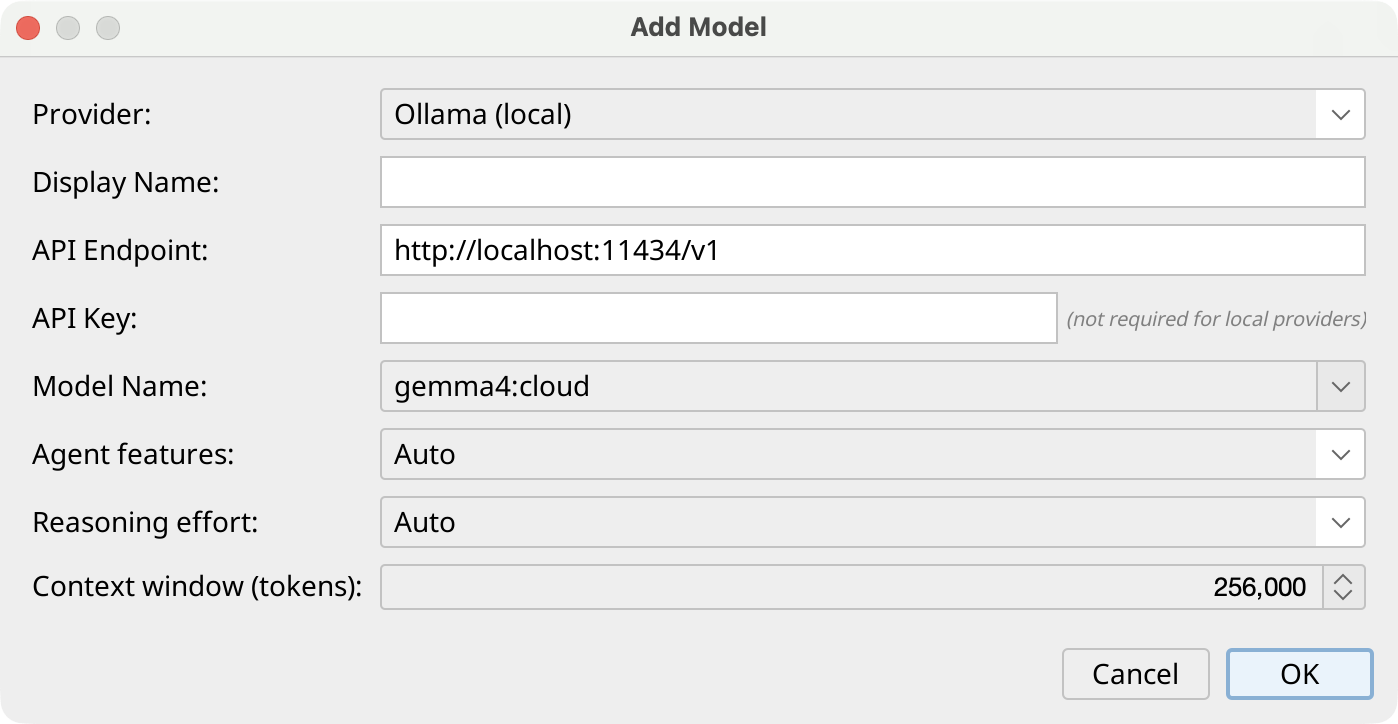
Click Add beside the model list under LLM Models. The Add Model dialog opens with the recommended setup already filled in: Provider is Ollama (local), Model Name is
gemma4:cloud, and no API Key is required. If you chosegemma4:cloudin the previous section, nothing needs to be changed.If you chose a different model, pick it from the Model Name list or type its name exactly as Ollama shows it, for example
qwen3. The Display Name fills in automatically and can be edited.Click OK to save the model, then click Test. The status line below the model list reports success or the reason the connection failed.
The remaining dialog settings are optional and their defaults suit the recommended model. Context window (tokens) is how much conversation the model can pay attention to at once; Phon fills in a suitable value for the suggested models, and Schwa automatically summarizes older messages as a conversation approaches the limit. Change it only if you use a model that is not in the suggestion list and know its context size. Agent features and Reasoning effort can stay on Auto; if a small local model struggles in Edit mode, change Agent features to Light.
The model can now be selected in the header of the Schwa view and anywhere else Schwa is available. If a request fails,
confirm that the Ollama application is running and that the model name matches a
model shown by ollama list. A requires a subscription
message means the chosen cloud model is not on Ollama's free plan; choose
gemma4:cloud or minimax-m3:cloud
instead, or upgrade the Ollama account.
Run a model locally (advanced)
Instead of a cloud model, Ollama can run a model entirely on your own computer, so session data never leaves your machine and no account is needed. Local models are smaller than cloud models and need capable hardware: 16 GB of memory is a practical minimum, and results improve with more. Most users are better served by the cloud models above.
In the Ollama window, click the model name in the lower-right corner of the message box. A list of models opens.
Choose a model that is not labelled
cloud, for exampleqwen3.Send any message, for example
hello. The first message downloads the model, which can take several minutes; later use is immediate.Add the model to Phon as described in Add the model to Phon, choosing the same model in Model Name.
The same download can be done from a terminal with ollama pull
qwen3, and ollama list shows every model already on
your computer.
For Schwa's agent features — Edit mode and tool use — choose a model that is good at following instructions and calling tools. Recommended local models:
qwen3— good all-round choice for computers with 16 GB of memory;qwen3:30bgives noticeably better results on computers with 32 GB or more.gpt-oss:20b— strong agentic model for computers with 16 GB of memory or more.deepseek-r1— reasoning model; slower, but thorough on analysis questions.
Schwa automatically gives these models its full agent features. Smaller models such
as phi4 or gemma3 run on more modest hardware
and are fine for Ask mode, but may struggle in Edit mode. The full catalogue is at
ollama.com.
Use Ollama on another computer
Ollama can run on a different computer than Phon, for example a shared lab machine with more memory. Ollama only accepts connections from its own computer until it is told to accept connections from the network.
On the computer running Ollama, open the Ollama window and choose from the menu bar (macOS), or open Settings from the Ollama window (Windows).
Turn on Expose Ollama to the network.
Note the computer's network name or IP address. On macOS the name is shown under , for example
lab-mac.local.On the computer running Phon, follow Add the model to Phon, but in API Endpoint replace
localhostwith that name or address, for examplehttp://lab-mac.local:11434/v1.Click Test to confirm Phon can reach the other computer.