
MCP Server
Phon can publish Schwa's AI tools — documentation search, project and session inspection, phonex compilation and testing, CHAT tier checking, record reading and editing, find and replace, queries, analyses, media and speech analysis, timeline actions, and project publishing — to external Model Context Protocol (MCP) clients such as Claude Code, Claude Desktop, Cursor, VS Code, Gemini CLI, and OpenCode. This is separate from Schwa's own outbound MCP connections, which are configured with Edit MCP configuration... in the Schwa menu.
The recommended way to connect a client is phon-mcp-stdio, a command
installed in Phon's bin folder. It works with or without the
desktop application running, and automatically hands each tool call to an
already-running instance when that instance has its MCP server enabled — see Connect an external client. An HTTP
endpoint on this computer (127.0.0.1) remains available as an
alternative for clients that need a network connection instead of a local
command.
Connect an external client
Point an MCP client at the phon-mcp-stdio command found in
Phon's bin folder, inside the application's install
directory. For example, for Claude Code: claude mcp add phon --
<install dir>/bin/phon-mcp-stdio. The command needs no running
Phon instance to work: on its own, project tools take a project
parameter naming a project folder on disk, and edits they make are written
directly to disk and cannot be undone from within Phon.
When Phon is running and its MCP server is enabled (see Start and stop the server),
the phon-mcp-stdio command defers each tool call to that
running application instead of acting headless. Editor tools —
list_open_editors and the session-editor tools — become
available, and the resulting edits are undoable in the target editor's history. A project tool that names a project already open in the
running application is always handled by the application, so a headless write can
never conflict with an open editor; naming a project that is not open runs
headless as usual.
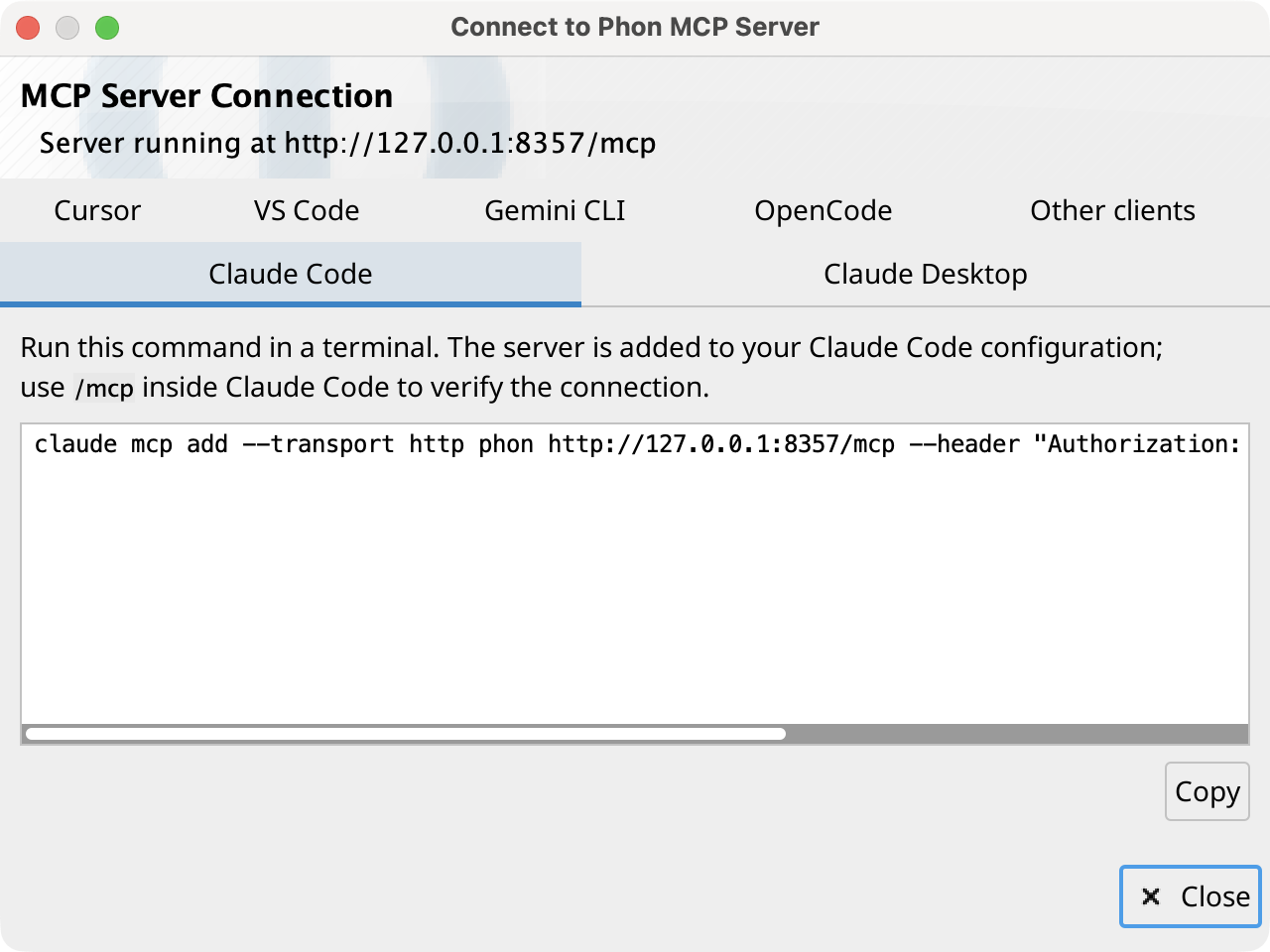
Select , or Connection instructions... on the Schwa
Preferences tab, to open the Connect to Phon MCP Server
dialog. Local command (recommended) is selected by default
and holds one tab per client — Claude Code, Claude Desktop, Cursor, VS Code,
Gemini CLI, and OpenCode — each with setup instructions and a copyable snippet
that already includes the phon-mcp-stdio path; its
Other clients tab lists the stdio transport and command
for any client not listed. Switch to Network (HTTP) for the
same tabs configured for the HTTP endpoint instead, with snippets that include the
endpoint URL and the current access token; its Other clients
tab lists the Streamable HTTP transport, the endpoint URL, and the
Authorization header to enter manually.
Start and stop the server
The server does not run by default. Starting it lets the
phon-mcp-stdio command take over this running Phon
instance, and lets clients connect directly over HTTP. Start or stop it in either
of these places:
In a Session Editor, select or Stop MCP server.
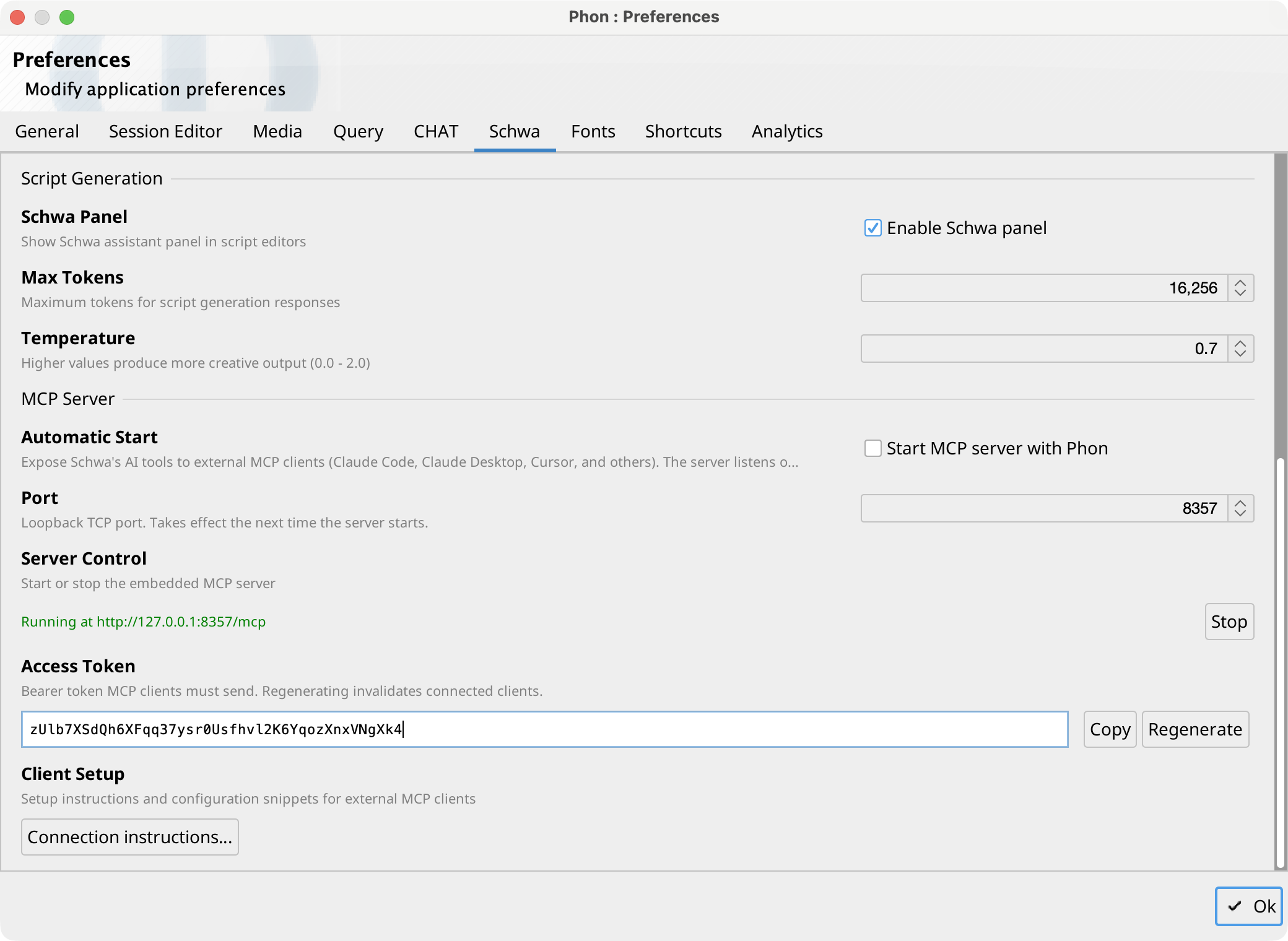
On the Schwa Preferences tab, use the Server Control row under MCP Server. The status line shows the endpoint URL while the server is running.
Enable Start MCP server with Phon to start the server
automatically when the application launches. The server listens on the configured
Port (default 8357); a port change takes
effect the next time the server starts. If the port is already in use, the server
reports the failure and remains stopped.
Access token
Requests are authenticated with a bearer token that Phon generates automatically.
The Access Token row on the Schwa Preferences tab shows the
token with Copy and Regenerate
buttons. Regenerating invalidates configured clients, which must be updated with
the new token; a running server keeps the old token until it is restarted. The
phon-mcp-stdio command reads this token automatically when
it hands a call to a running instance, so no manual configuration is needed for
that path.
Tools and session targeting
The server publishes Schwa's tool set: documentation search, project and session
inspection, phonex compilation and testing, CHAT tier checking, record reading and
editing, find and replace, queries, analyses, media and speech analysis, timeline
actions, and project publishing. Editor tools — list_open_editors and the
session-editor tools — are always listed but require a running Phon instance;
when Phon is not running, calling one returns an error asking to launch
Phon.
Project tools, such as list_projects, inspect_project,
and run_script, take a project parameter naming a
project folder, absolute or relative to the directory the client started the
server in; call list_projects to discover available projects.
The check_chat_tiers tool takes a file parameter
instead, naming a CHAT file the same way, and needs neither a project nor a
running Phon instance; see Checking CHAT files with phon-chat-check.
Most editor tools instead operate on a session editor window open in Phon. The
list_open_editors tool lists open editors with an id
(#1, #2, ...) and a
corpus/session path. Other editor tools accept either form in
an optional session parameter; when it is omitted, the focused
(or only open) session editor is used.
Changes made through a running Phon instance are grouped into single undoable edits in the target editor's history; changes made headless are written directly to disk and cannot be undone. A tool call that runs longer than two minutes is reported to the client as a timeout error; publishing a project is allowed thirty minutes, because it rewrites every session in the project. In both cases the underlying work keeps running after the timeout is reported, and a write tool's output is still produced; the timeout only means the client stops waiting for a result.