Project Workflows
The classic Project Manager and Project Tree share the following commands in the Project menu.
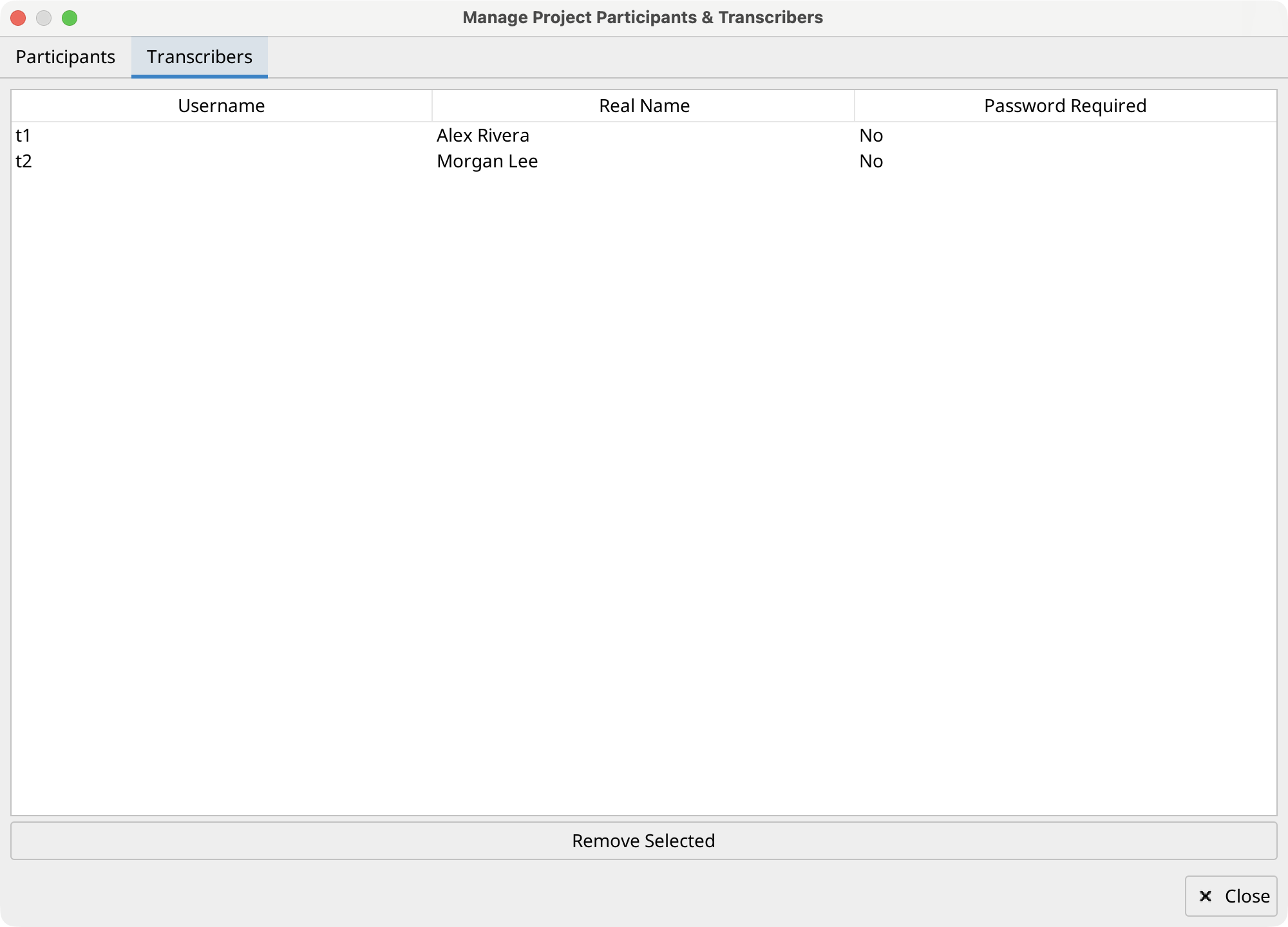
Check sessions
Select Check sessions..., select at least one session, and choose the checks to run. Available checks cover IPA transcript syntax and syllabification, phone alignment, overlapping segments for the same speaker, and session media. CHAT strict mode applies stricter CHAT rules to checks that support it.
The final page runs the checks and displays a report whose findings identify the session, record, tier, value, severity, and message. Options offered by a check can modify selected sessions—for example fixing overlaps or media names—so save or review important work first.
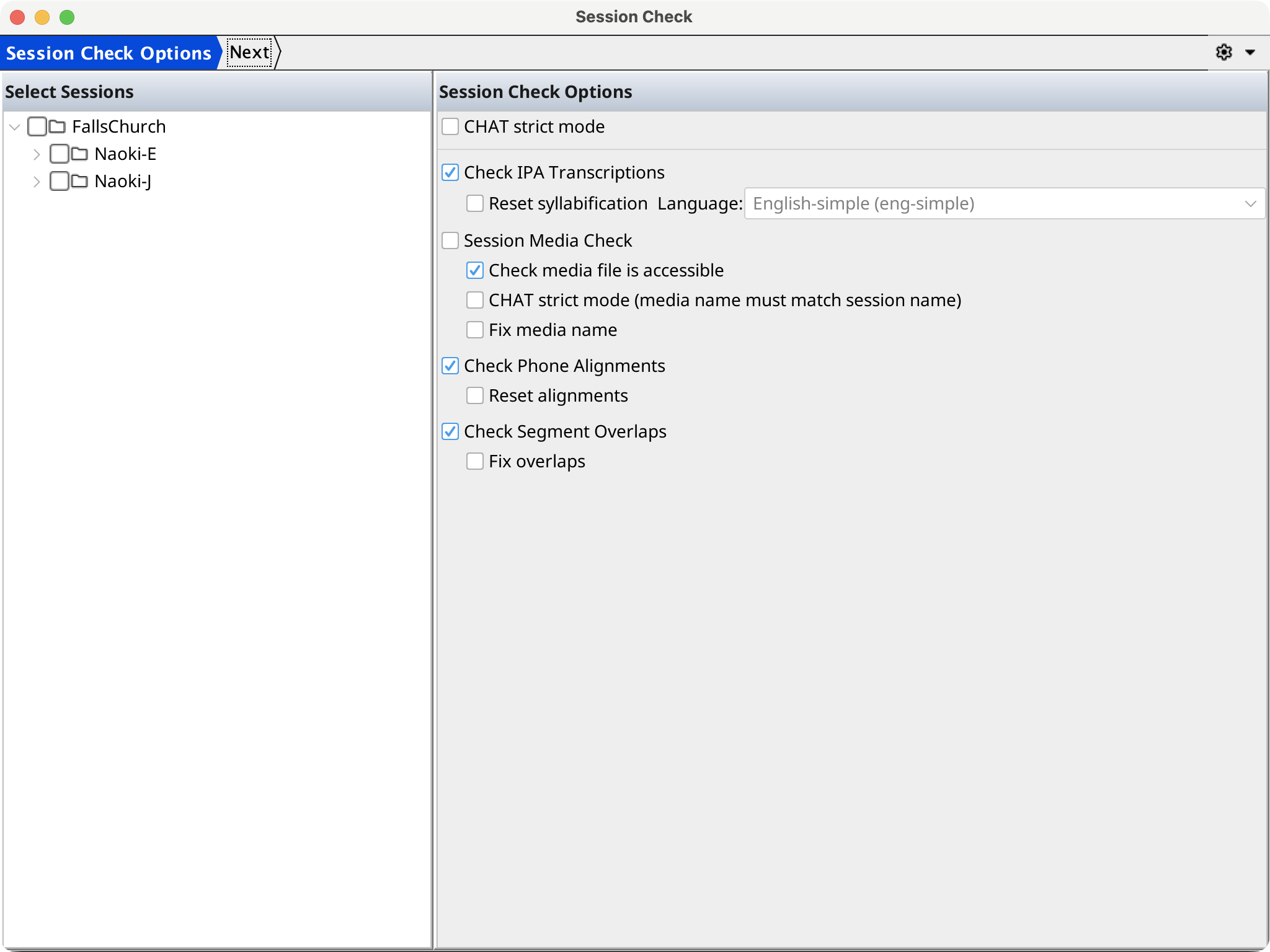
Anonymize participant information
Select Anonymize participant information..., choose the fields to remove, and select the sessions to change. Available fields are participant ID (reassigned from role), name, sex, birthday, age, language, first language, education, group, SES, birthplace, and other information.
Publish a project copy
Select Publish... to create a clean copy of the project for sharing or archiving. The source project is never modified.
Schwa can run the same publish without the wizard. Ask it to preview a publish to see the output location and the sessions that would be included, then ask it to publish. It writes the same output the wizard does; it does not upload the result anywhere.
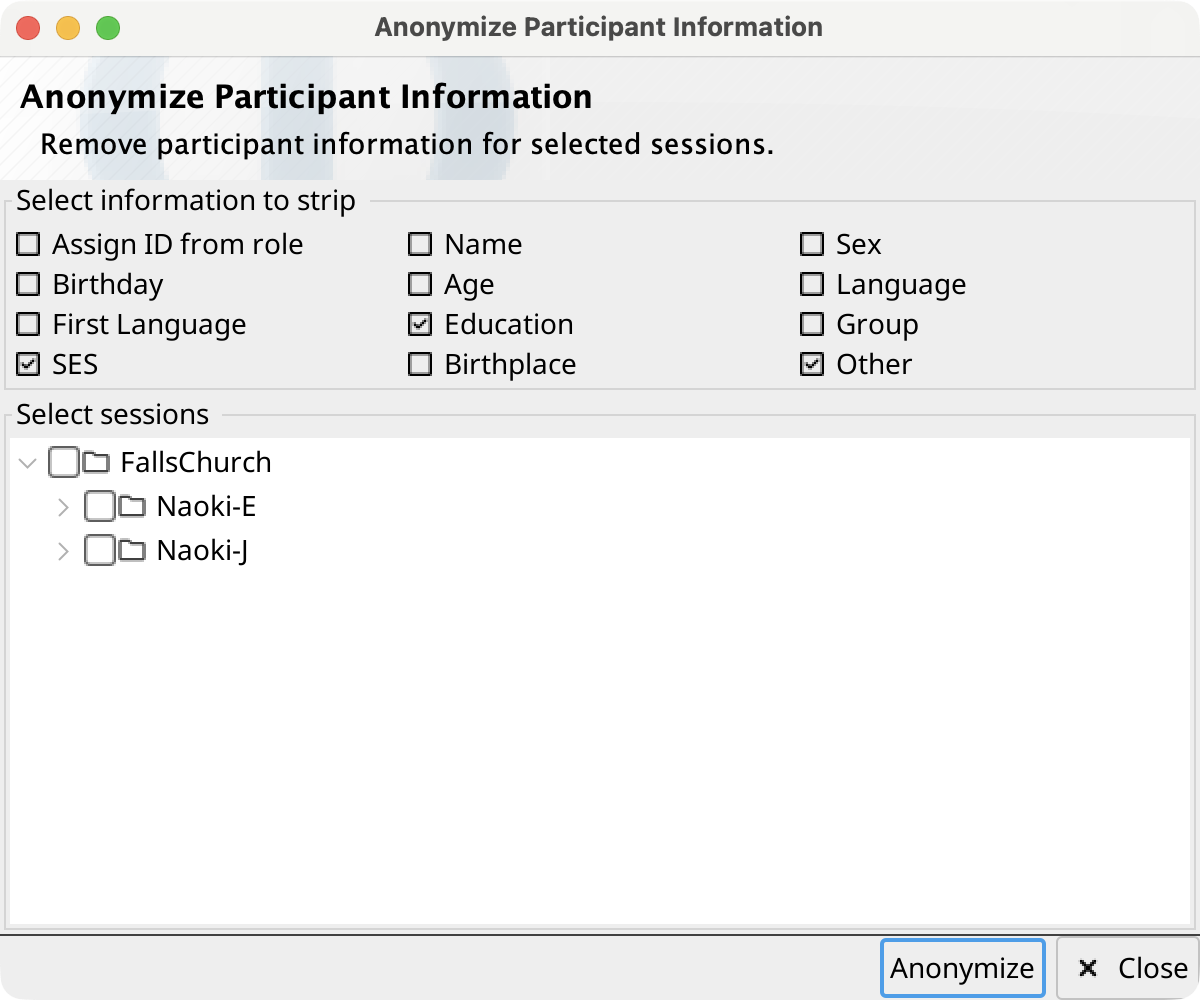
- On Setup, choose the output format, set the output location, decide whether to overwrite what is already there, and check the project files to include. The output cannot be the source project or a folder inside it.
- On Settings, decide whether to drop per-transcriber blind values, which participant fields to anonymize, and which tiers to exclude. The validated tier values are preserved when blind values are dropped. Orthography cannot be excluded from any format that writes CHAT, which includes TalkBank (.zip) and CHAT (.cha).
- On Run, handle any selected sessions with unsaved editor changes, then monitor per-file status, validation messages, and the log.
Output formats
Three output formats are available on the Setup page:
- TalkBank (.zip)
- The default. Writes a single .zip file prepared for submission to TalkBank or PhonBank, holding both a CHAT and a Phon copy of every selected session. See What the TalkBank zip contains.
- CHAT (.cha)
- Writes a folder of .cha files that mirrors the project's corpus folders.
- Phon (.xml)
- Writes a folder of Phon session XML files plus a project file at the folder's root, so the result opens directly in Phon.
Phon suggests an output location beside the source project — <project>.zip for TalkBank, or a folder named <project>-cha or <project>-phon — and adds a number to the name when one is already in use. The suggestion is replaced whenever the format is changed, until an output location is chosen manually.
Switching to TalkBank (.zip) adds a Zip file name field beside the folder selector, and the clearing option becomes Overwrite existing .zip file rather than Clear target folder first. Without it, publishing stops when a file of that name already exists.
What the TalkBank zip contains
Every selected session is written twice, so the same publication serves both CHAT tools and Phon:
- CHAT/ holds a .cha file per session, in folders matching the project's corpora.
- Phon/ holds the matching Phon session XML plus a project file, so that folder can be opened in Phon on its own.
- Any other files selected for publication are copied unchanged to the top level of the zip.
Check Include combined project file at zip root to add a
project file covering the mixed CHAT and Phon content at the top level of the
zip, named 0<project>-combined.phonproj. The leading
0 keeps it at the top of file listings; the project name
stored inside it does not include the prefix. This option is off by default and
applies only to TalkBank (.zip).
Running the publish
The Run page lists every file as it is processed, with its status and any messages. Formats that write CHAT — TalkBank (.zip) and CHAT (.cha) — also send each published .cha file through CHAT validation, and report the number of issues found per session. The validation tool used is identified in the messages, and a warning is recorded if it cannot be found so that skipped validation stays visible.
Individual problems do not stop the run: they are counted and reported, and the remaining files continue. Use Open Session beside a reported session to fix the source and publish again.
When the run finishes, the button at the bottom of the page reveals the .zip file in the system file browser for TalkBank output, or opens the output folder for the folder formats. Per-file Open Output actions are offered for folder formats only, because TalkBank sessions are assembled in a temporary folder that is removed once the zip is written.
Derive a session
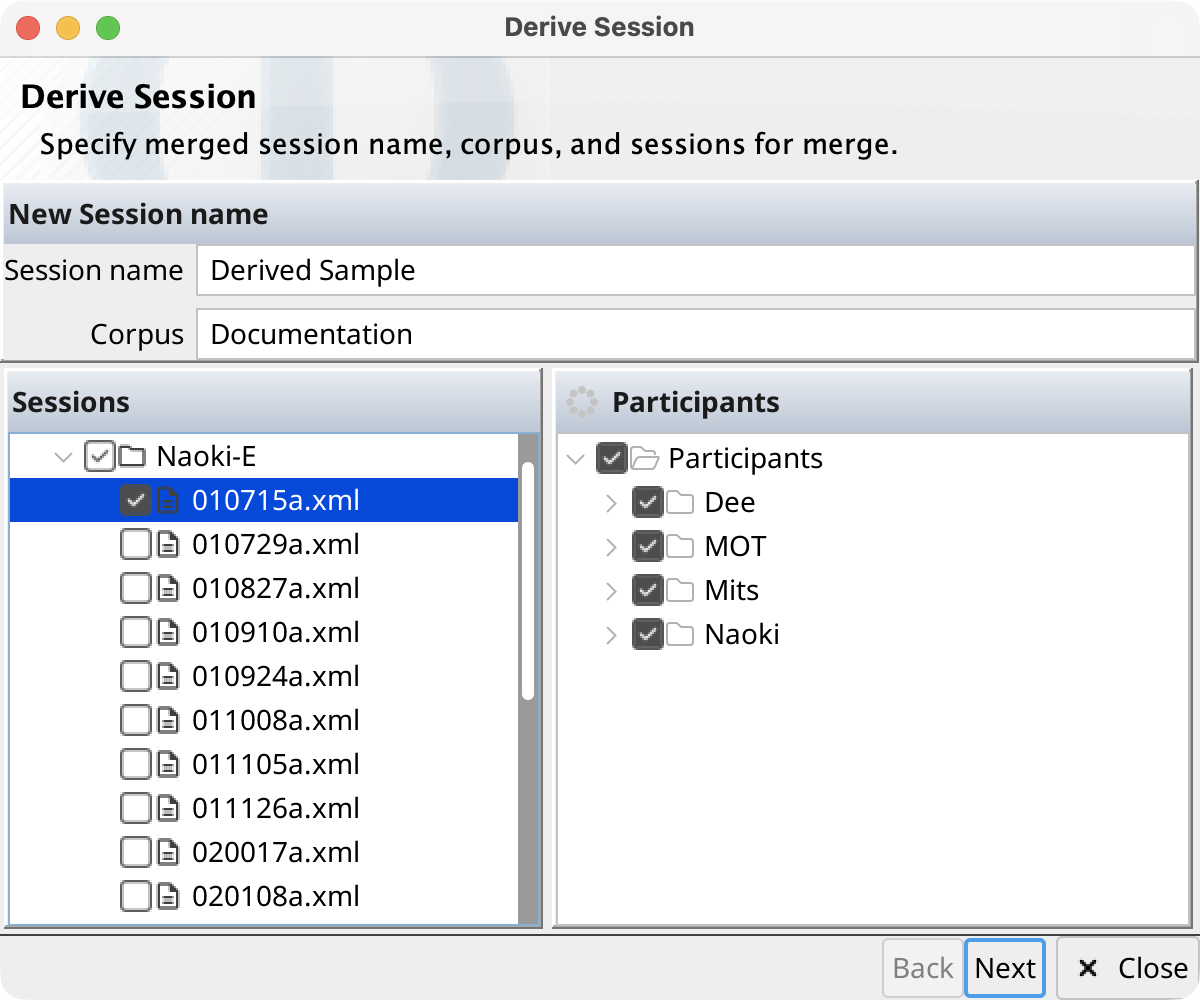
Select Derive session... to combine selected records into a new session. Enter the destination session and corpus, select one or more source sessions, and select at least one participant. For each source session, configure its record filter on the Select Records page.
Phon creates the destination corpus when needed and writes the new session after the merge. Source sessions are processed in sorted order. Matching source media is retained; conflicting media locations leave the new media field blank. The progress page reports creation, merge, and save operations.
Team and Git commands
If the project is not a Git repository, creates one. A Git project instead provides Commit, Pull, and Push.
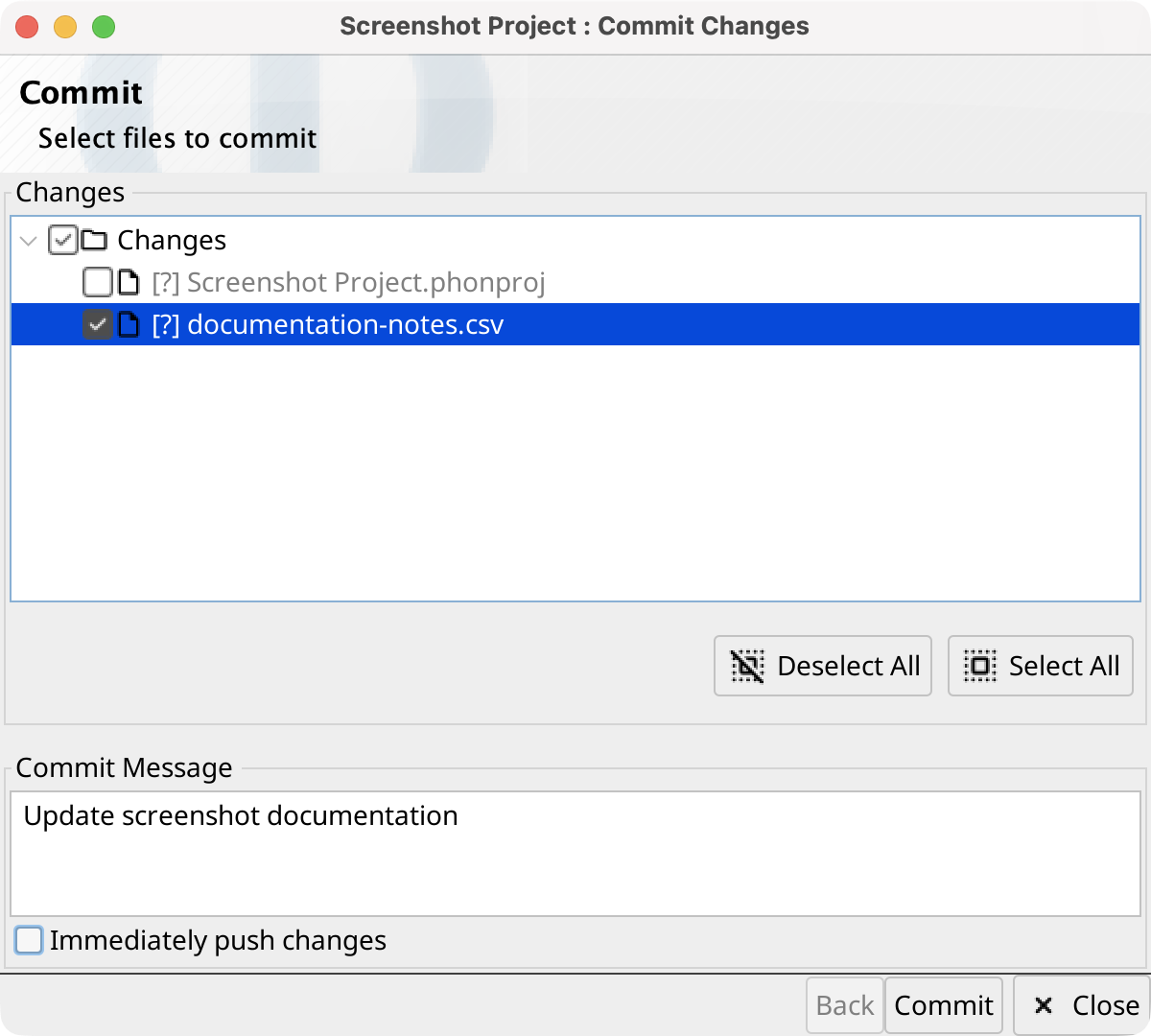
The Commit wizard lists changed files with their Git status. Already staged files are initially selected; use the tree or Select/Deselect All controls to choose the next commit. Enter a required message and optionally enable Immediately push changes. Selecting Commit stages exactly the checked files, creates the commit in the background, optionally pushes it, and shows progress on the second page.
Manage project participants and transcribers
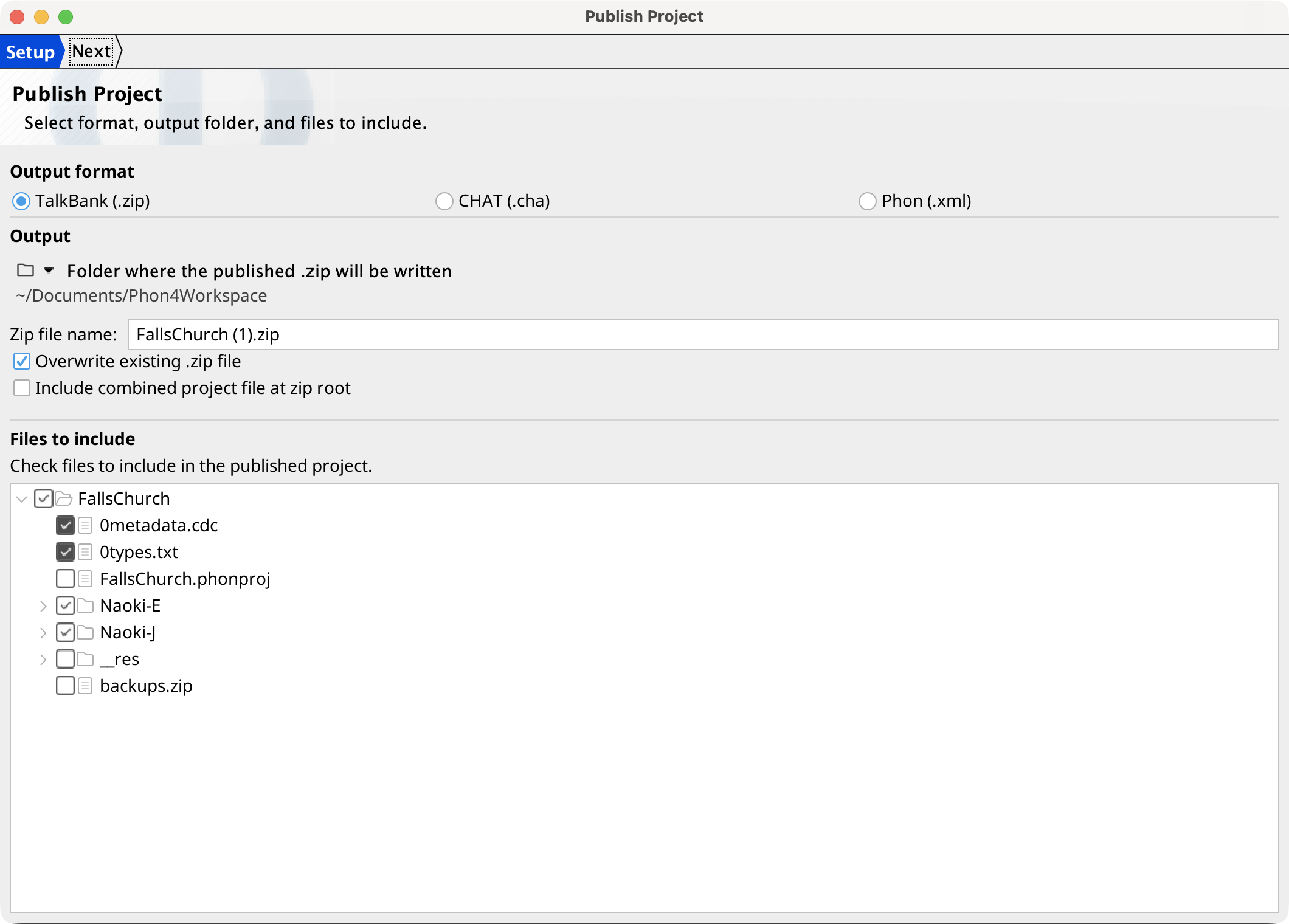
In the Project Tree, select Manage Participants & Transcribers.... The Participants tab lists reusable ID, name, role, sex, birthday, and language values. The Transcribers tab lists reusable username, real name, and password-required status.
Select one or more rows and choose Remove Selected to remove them from the project-level list after confirmation. This does not remove or change participants or blind transcribers already stored in sessions.